
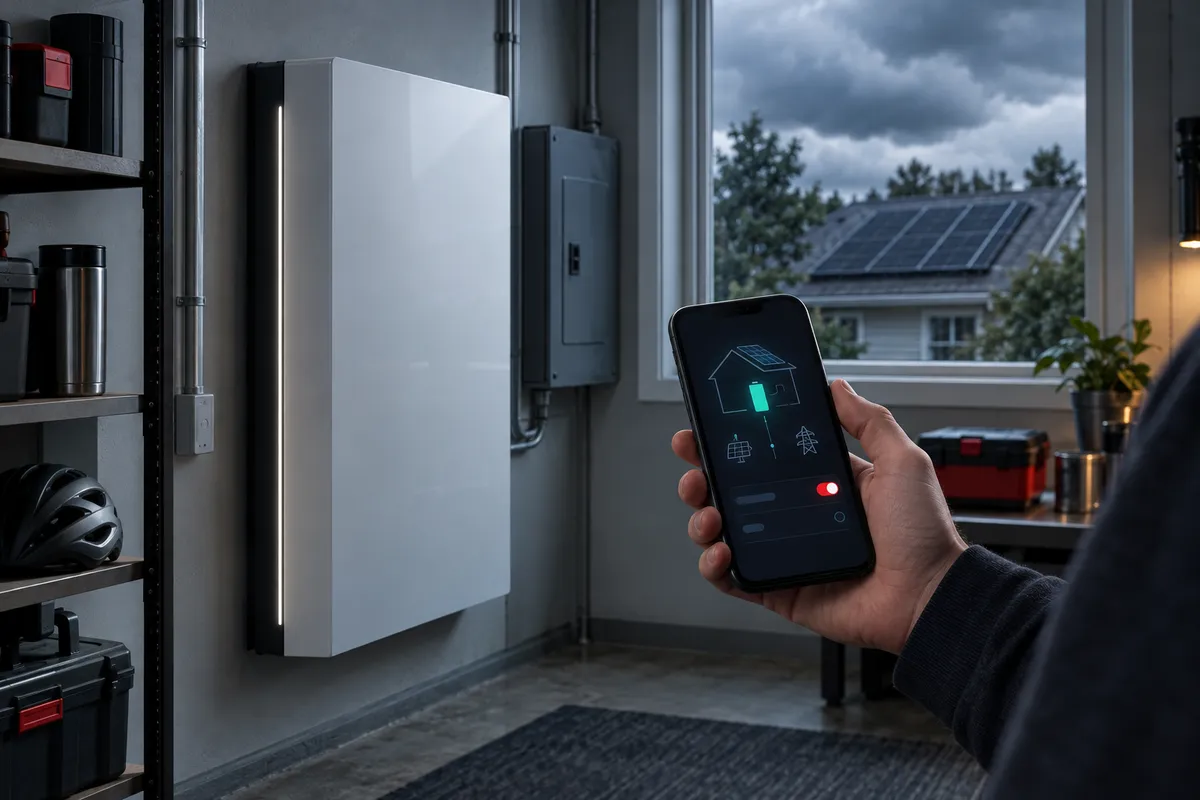
Search interest in "storm watch" is climbing in the US, and it traces back to one feature: Tesla Powerwall's Storm Watch Mode. By the end of this guide, you'll know what to look for in how the feature is described, and you'll have a practical pre-storm checklist for any home battery setup.
One caveat first. The only coverage behind this spike is a single explainer, "Tesla Powerwall Storm Watch Mode: How It Works," from BASENOR, a Tesla accessories retailer. Search volume is modest, roughly 100+ searches. So this is an early, niche topic, and the technical details are best confirmed in your own Tesla app and with Tesla's documentation. I won't invent specifics the coverage doesn't support.
What Storm Watch Mode Is, in Plain Terms
Per BASENOR, Storm Watch Mode is part of how Powerwall prepares for storm-related outages. The idea is simple: a home battery is most useful when it's full before the lights go out, not after. A feature built around bad weather exists to get ahead of the outage rather than react to it.
That framing matters for how you think about backup power. A battery that's half-drained when a storm rolls in gives you half the runtime you were counting on.
Check Your Settings Before the Forecast Turns
Don't wait for a warning to learn where your settings live. On a calm day:
- Open your Tesla app and find your Powerwall's settings.
- Look for any storm-related or backup-related options and read what each one says.
- Confirm the app shows your system as connected and online.
- Note your current battery charge level so you know your normal baseline.
If something looks unfamiliar, check Tesla's own support materials or ask your installer. Ten minutes now beats guessing mid-storm.
Decide What Your Battery Needs to Run
Backup power only helps if you know what you want it to cover. Before storm season, write a short list in two columns.
Must-run items
- Refrigerator and freezer
- Phone and laptop charging
- Internet router and modem
- A few lights
Nice-to-have items
- TV and gaming gear
- Space heaters or other high-draw appliances
- Extra kitchen appliances
Prioritizing keeps you from draining the battery on comforts in the first hours. Check with your installer about which circuits your system backs up, since that varies by setup.
Prep the Rest of the House Too
A battery doesn't replace basic storm readiness. Pair it with a few low-tech steps:
- Keep flashlights and spare batteries where you can find them in the dark.
- Charge portable power banks and devices ahead of time.
- Know where your breaker panel and any manual shutoffs are.
- Secure outdoor furniture, planters, and decor that could become projectiles.
- Clear gutters and drains so heavy rain has somewhere to go.
These are standard home-prep habits, not claims about Powerwall. They're worth doing either way.
Keep Your Tools Within Reach
BASENOR sells Tesla accessories, so take its coverage as one retailer's explainer rather than official guidance. Still, it's a useful signal that owners are asking how their batteries behave before severe weather. Bookmark the app, save your installer's contact info, and keep Tesla's support details handy in case you lose internet access.
Questions to Ask Your Installer
If you're shopping for a home battery or already own one, these questions turn a vague feature name into real answers:
- What does the system do automatically when severe weather is forecast?
- Can I adjust that behavior, and where?
- Which parts of my home are covered during an outage?
- About how long could the battery run my must-run list?
Those answers are more valuable than any blog summary, including this one.
Your Action for This Week
Open your battery app today, find the storm-related settings, and write down your must-run list. If you can do those two things before the next forecast alert, you'll know exactly what your system will do when the weather turns.